Remove Background in Paint 3D (Step-by-Step Guide for Beginners)
If you are already using Paint 3D, then there is no need to install another third-party app or look for online tools to remove the background of an image. Many users don’t know about this built-in feature of 3D Paint, which can do this job in seconds. The process is simple, free, and inside the same tool you are already comfortable with.
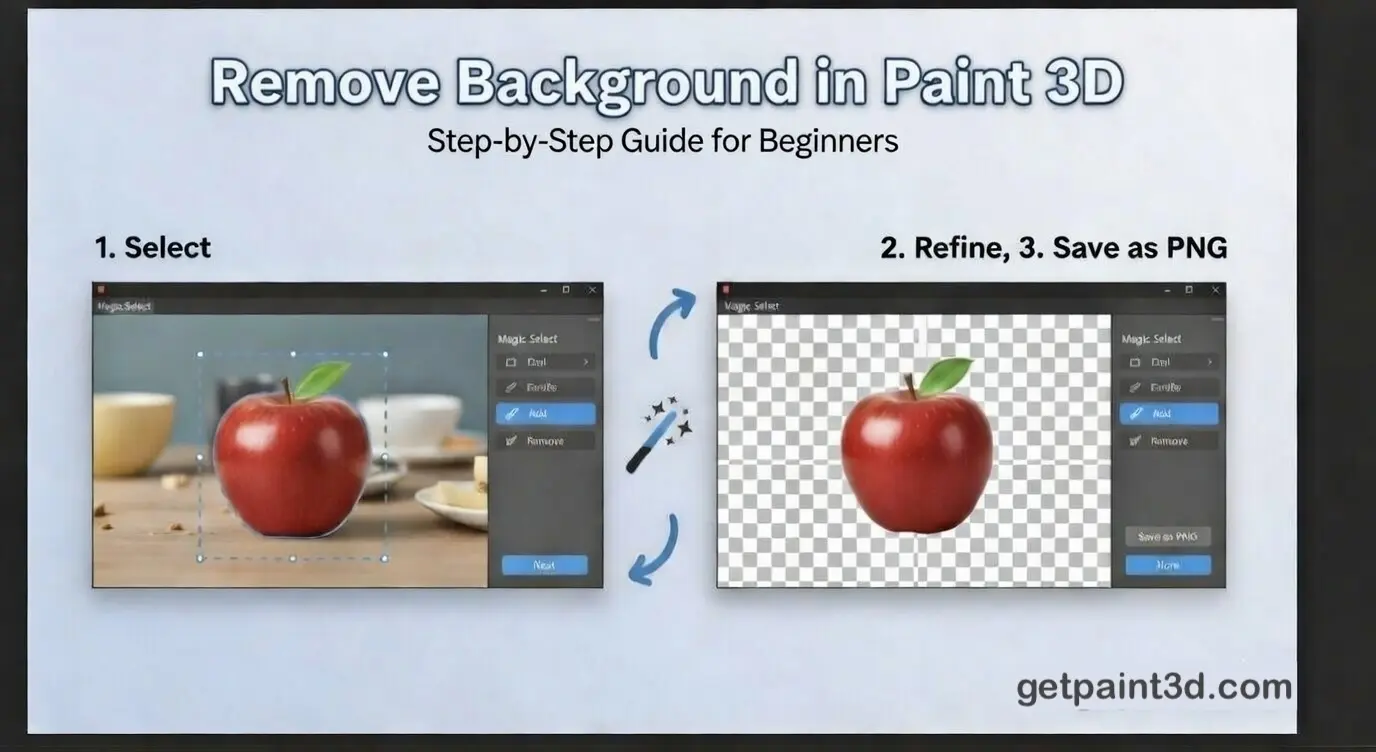
You can remove the background of any image in just a few clicks using the Magic Select Tool. You can cut out the main subject, make the background transparent, and save the image for reuse. In this guide, we will learn the step-by-step process of removing the background of an image in Paint 3D and also the helpful tips to get cleaner and more accurate results.
What is Paint 3D
Paint 3D is the advanced version of the classic creative tool, paint of Microsoft for Windows users. It is designed to make drawing, image editing, and simple 3D work easy for everyone. You can use it to edit photos, create illustrations, add text, and work with both 2D and 3D objects.
It has a clean and beginner-friendly interface, so everyone can use it easily, even with little or no technical knowledge. Its features, like brushes, shapes, stickers, and Magic Select, etc., help you make quick edits without learning complex software. This is why many users still use it for simple tasks like removing the image background.
Paint 3D Background Removal – Features & Details
Feature |
Details |
|---|---|
|
Tool Name |
Paint 3D |
|
Feature Used |
Magic Select Tool |
|
Purpose |
Remove image background & create transparent PNG |
|
Best For |
Beginners, students, casual users |
|
Difficulty Level |
Easy |
|
Time Required |
1–3 minutes |
|
Supported Formats |
PNG, JPG, BMP |
|
Transparent Background Support |
Yes (PNG only) |
|
Internet Required |
No (Offline) |
|
Operating System |
Windows 10 & Windows 11 |
|
Cost |
100% Free |
|
Best Alternative Tools |
Remove.bg, Canva, Photoshop, PhotoRoom |
How to Remove Background in Paint 3D (Step-by-Step)
Step 1: Open Paint 3D and Start a New Project
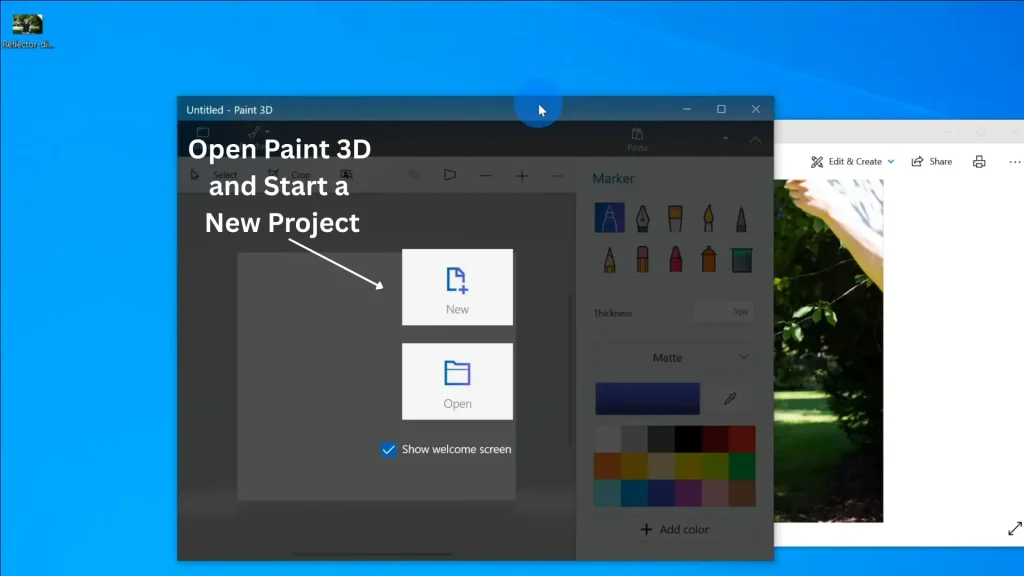
This opens an empty canvas where you can work on your image.
Step 2: Add Your Image to Paint 3D
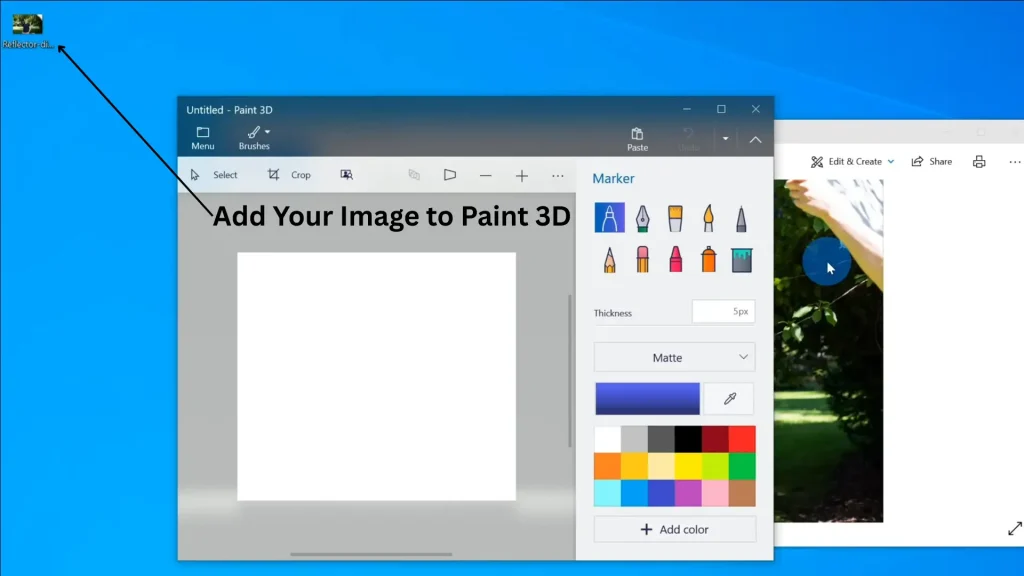
Your image will now appear on the canvas with its background still visible.
Step 3: Open the Magic Select Tool
There are two ways to access Magic Select:
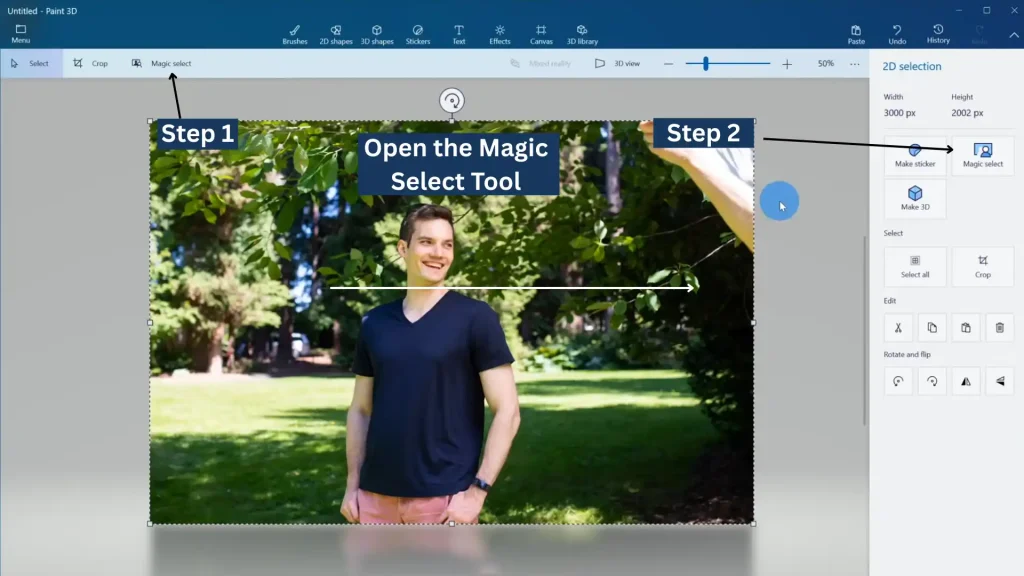
There are two ways to access Magic Select:
Step 4: Select the Subject
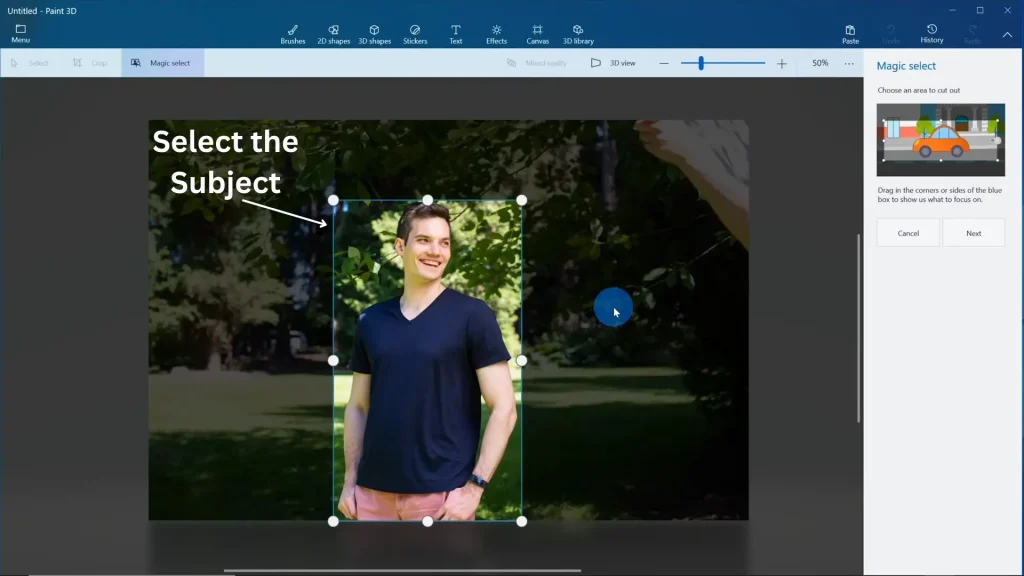
3D Paint will automatically try to separate the subject from the background.
Step 5: Refine the Selection (Add & Remove)
Paint 3D may miss some details, especially around hair or small objects.
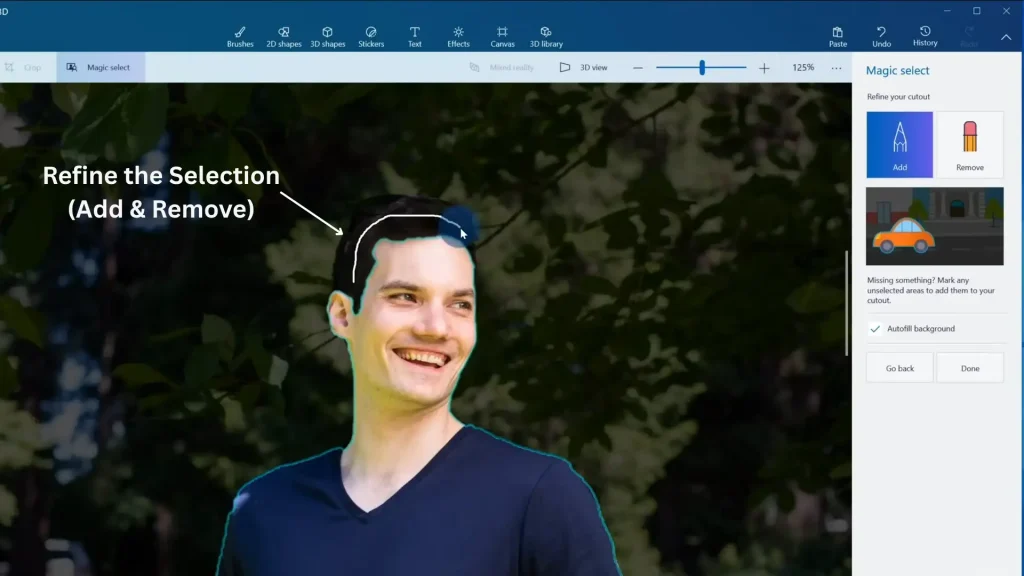
Zoom in while refining for better accuracy. When the selection looks right, click Done.
Step 6: Understand What Changed
At first glance, the image may look the same.
But now the subject is separate from the background.
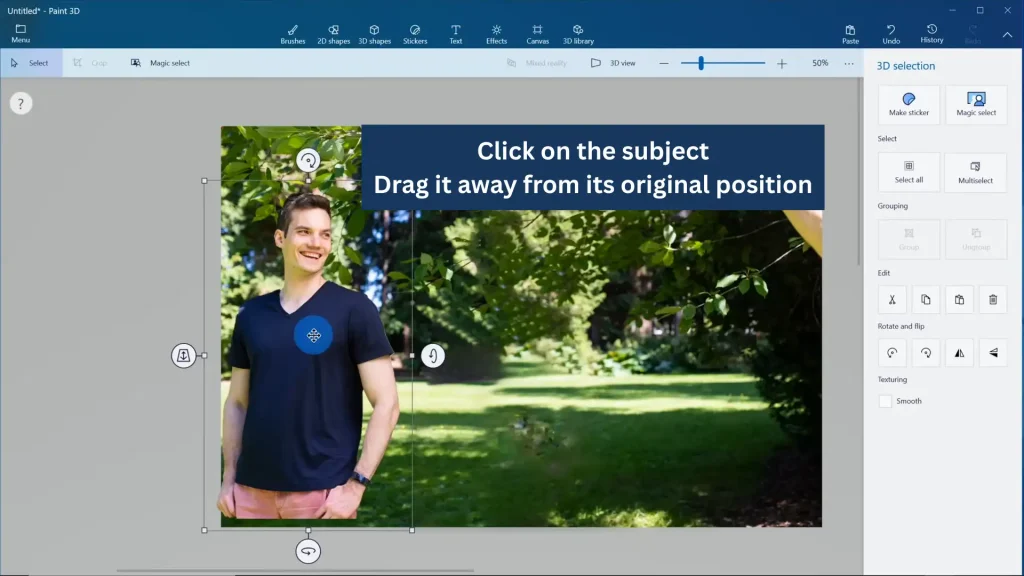
You’ll notice Paint 3D automatically fills the background where the subject was (Auto-Fill Background).
Step 7: Copy the Subject
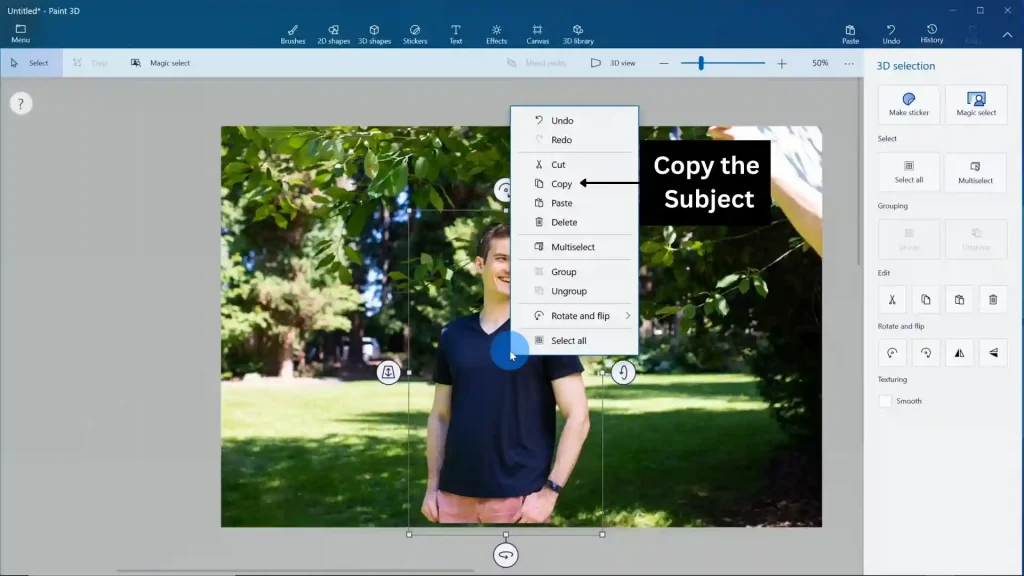
You can now paste this cutout into
Step 8: Create a Transparent Image
To save only the subject with no background:
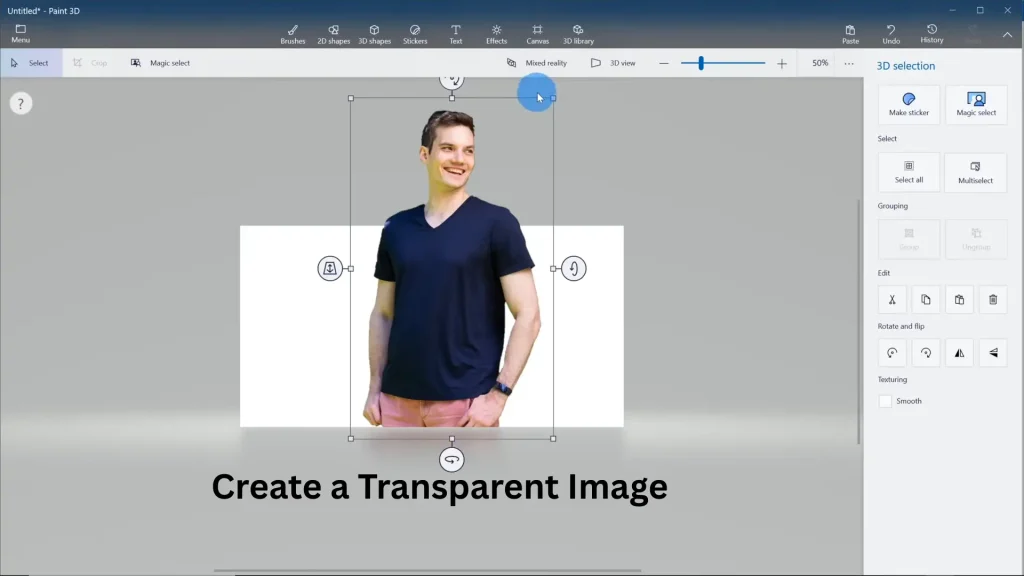
Now your canvas contains only the subject.
Step 9: Save the Image With a Transparent Background
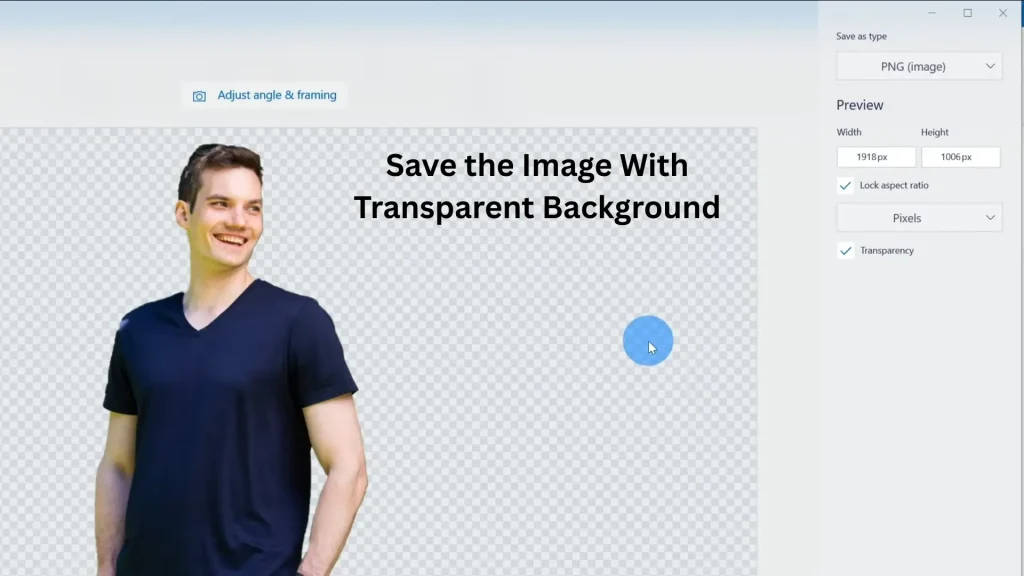
PNG keeps transparency. JPG does not.
Common Problems & Fixes When Removing Background in Paint 3D
Removing background in Paint 3D is very simple, but sometimes the results may not look perfect. The reason could be poor image quality, incorrect saving settings, and small mistakes during the selection process. Below is a list of the most common problems users may face, along with solutions to fix them easily.
1. Background Turns White After Saving the Image
This is one of the most common issues. It usually happens when the image is saved in the wrong format.
Fix
Always save your image as PNG, not JPG. PNG supports transparency, while JPG does not. Also, make sure the transparent canvas option is enabled before saving.
2. Magic Select Cuts Off Part of the Subject
Sometimes Magic Select removes the important parts like hair, fingers, or edges, etc., of an object.
Fix
Use the Add option in Magic Select to bring back the missing areas. Zoom in and refine the edges slowly for better accuracy.
3. Background is Not Fully Removed
You may notice small parts of the background are still there in the image.
Fix
Use the Remove option present in the Magic Select to clean up unwanted areas. Tightening the selection box at the start can also improve results.
4. Image Looks Rough or Jagged Around the Edges
Edges may look uneven, especially when the background and the subject have similar colors.
Fix
Zoom in and carefully refine the selection. High contrast images usually give better results. Taking a little extra time with refinement makes a big difference.
Advanced Tips & Tricks for Better Background Removal
Once you understand the basic steps, a few smart tricks can help you get much better results. These tips are very useful when working with detailed images, logos, or objects with uneven edges.
Start With a Clear, High-Quality Image
Images with good lighting and strong contrast are easier for Magic Select to detect. If the subject and background are very similar in color, background removal becomes harder.
Zoom in While Refining the Selection
You can avoid missing small areas in the process of selection with the help of zooming in. This is most useful for edges, corners, and fine details like hair or thin objects
Adjust the Selection Box Carefully
Before clicking Next in Magic Select, make sure the selection box fits closely around the subject. A tight selection helps the app separate the subject from the background more accurately.
Use Transparent Canvas From the Start
Turning on the transparent canvas early helps you see what is being removed and what is left behind. This reduces mistakes and makes the final result easier to control.
Always Save the Final Image as PNG
If you want a transparent background, PNG is the best option. Saving in JPG will remove transparency and replace it with a solid background color.
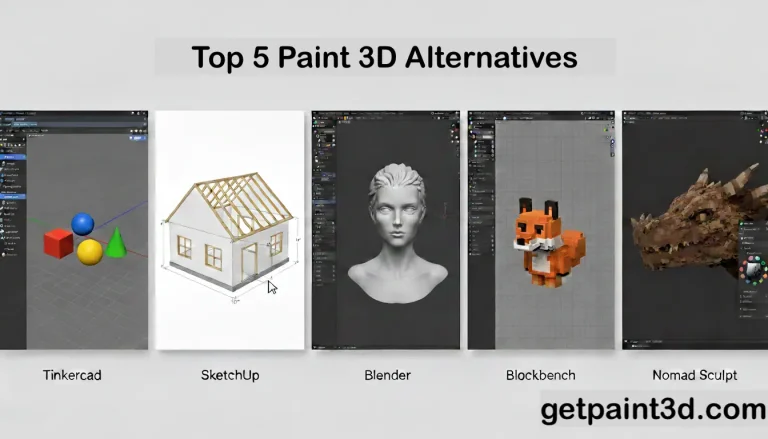
Best Alternatives to Paint 3D for Background Removal
If you still struggle to remove the background with clean cuts in Paint 3D, then you might find the following alternatives helpful for background removal.
1. Remove.bg
remove.bg is one of the fastest ways to remove image backgrounds online. It is an online free tool. You upload an image, and the background is removed automatically within seconds. It works especially well for people, products, and clear subjects.
Best for
Quick background removal with minimal effort
Limitations
Requires internet and may limit free downloads
2. Canva
Canva offers a background remover as part of its design tools. It’s easy to use and ideal if you want to remove a background and place the image into a design like a social post, poster, or thumbnail.
Best for
Designers, social media content, and quick layouts
Limitations
Background removal requires a paid plan
3. Adobe Photoshop
Photoshop provides advanced background removal with full control over edges, masks, and details. It delivers the highest quality results but comes with a learning curve.
Best for
Professional editing and complex images
Limitations
Paid software and not beginner-friendly
4. PhotoRoom
PhotoRoom is a popular choice for product photos and eCommerce images. It removes backgrounds quickly and helps create clean, ready-to-use visuals.
Best for:
Product images and online store listings
Limitations:
Many features are locked behind a subscription
Is 3D Paint Still Worth Using for Background Removal?
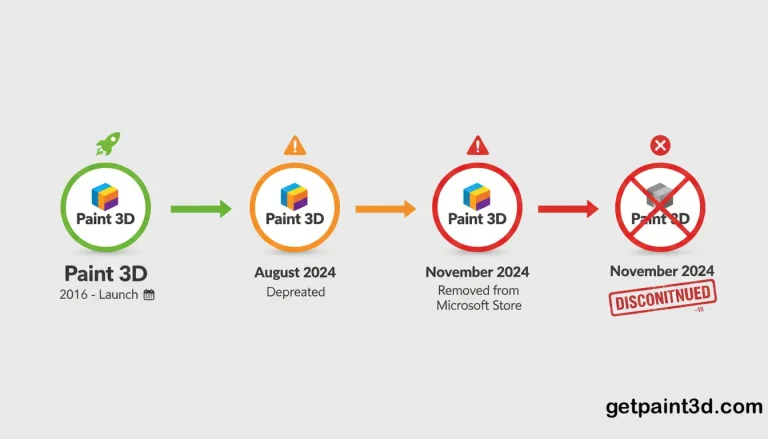
Even though Paint 3D is no longer actively updated and has been removed from the Microsoft Store, it can still be a useful tool for many people. If you already have it installed on your Windows computer, it remains a simple way to remove backgrounds without paying for anything.
For basic tasks like cutting out simple shapes, logos, or people from a plain background, this software works well. It doesn’t require internet, extra plugins, or design skills. This makes it a good choice for beginners, casual editors, and anyone who needs quick results.
However, if you often work with complex images like pictures with fine hair, soft edges, or low contrast, then it may struggle a bit there. In those cases, you can use a modern tool with AI background removal or advanced masking, which gives cleaner results.
So yes, 3D Paint is still worth using, especially if you want a free and offline option for basic background removal. But if you need professional quality or faster results, other tools might serve you better. Explore our detailed guide on Paint 3D alternatives for more powerful options with active development.
FAQs
Conclusion
Removing the background in Paint 3D is quick, free, and easy, especially for beginners. With the Magic Select tool, you can cut out subjects, create transparent images, and reuse them in other apps without installing extra software. While it may not give perfect results for complex images, it still works well for basic background removal and everyday editing. If you need more advanced or cleaner results, you can always switch to other tools, but for simple tasks, 3D Paint remains a practical option.