Paint 3D Software for Windows 10 & 11
Looking for an easy way to turn your ideas into real 2D or 3D designs without learning complicated professional software? Paint 3D lets you edit 2D and 3D images, create stunning artwork, and turn your imagination into visually realistic designs using shapes, doodles, stickers, and effects in just a few clicks.
100%
Free Software
Win 10+
Compatible
Easy
To Learn
Note: 3D Paint used to come preinstalled on many Windows 10 versions. Microsoft deprecated it in August 2024 and removed it from the Microsoft Store on November 4, 2024. We’re here to help you get it back!
Paint 3D Software for Windows (Latest Info)
Name
Paint 3D
Supported OS
Windows 10 & 11
Price
Free
Extension
.exe
User rating
4.5/5
Downloads
2Millions+
Latest Version
6.2405.19017.0
Developer
Microsoft
Software type
Graphic design & 3D modeling/painting
File size
About 64 MB
Supporting file format
2D: PNG, JPG. 3D: FBX, GLB, 3MF
Whether you’re a beginner or casual creator, Paint 3D simplifies otherwise challenging 3D modeling with ready-made shapes, a built-in 3D library, and intuitive drawing and painting tools.
Perfect for 3D modeling and 3D painting, this software provides a smooth entry into multidimensional art, enabling you to design and customize your ideas directly from your Windows 10 or 11 PC.
It is a simple, beginner-friendly software that lets you quickly turn ideas into realistic 2D and 3D designs without requiring complicated programming knowledge. You can edit 2D and 3D images, draw, add stickers and effects, and create visually realistic designs using built-in shapes and tools. With its ready-made 3D library and easy interface, it makes 3D modeling simple and accessible, perfect for anyone creating multidimensional art on Windows 10 or 11.
Key Features
Paint 3D stands out because it is lightweight, easy to install, and simple enough for beginners while still producing polished results. Most people can start creating within minutes, which is one reason I personally find it so approachable. Here are some of its specific features:
2D and 3D Creation Tools:
It lets you create both 2D drawings and 3D models in the same app. You can sketch an idea, turn it into shapes, add colors and effects, and even convert concepts into basic 3D designs. Switching between 2D and 3D feels natural and smooth.
Magical Colour Tools (Brushes and Painting Tools)
The app offers a digital toolkit that includes watercolor, oil, marker, pixel, calligraphy, crayon, fill tool, spray can, and an eraser. These tools are straightforward and great for adding artistic effects, fine details, or quick fixes.
Textures, Stickers, and Effects
You can enhance your artwork with textures, stickers, filters, and lighting effects. Textures such as wood, metal, or glass help give a realistic finish, while stickers can wrap around 3D shapes, something I really enjoy experimenting with because it instantly makes models feel more alive.
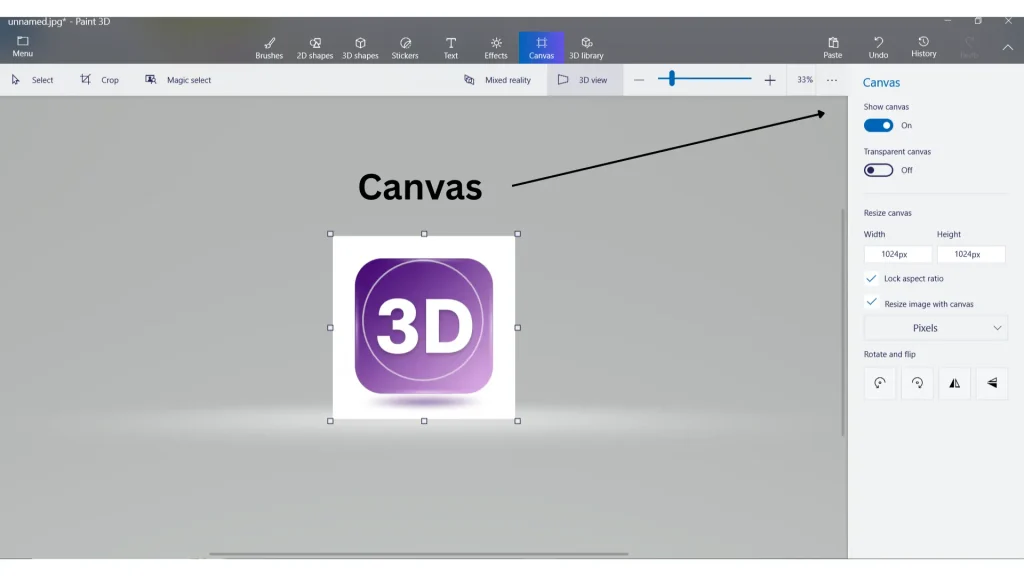
Flexible Canvas & Workspace
The workspace is simple and distraction-free. You can resize the canvas, toggle transparency, and control orientation, giving you full flexibility over your project while keeping everything accessible in one place.
Built-in 3D Model Library
The software includes a ready-made 3D model library with shapes, objects, animals, plants, furniture, vehicles, and more. Instead of starting from scratch, you can edit and customize these models to match your idea, perfect for quick concepts and 3D visualization.
2D & 3D Object Editing
Objects can be rotated, resized, moved, recolored, and viewed from different angles. With simple tools, you can refine shapes, position elements correctly, and give your artwork a more realistic appearance without advanced modeling skills.
2D and 3D Shapes
It includes built-in 2D and 3D shapes, doodles, and basic models. You can stretch, rotate, and combine them to build creative designs or simple 3D scenes. It is ideal for beginners learning dimensional art.
Magic Select Tool
Magic Select makes it easy to remove backgrounds, isolate objects, or cut out irrelevant parts from photos in seconds. It helps highlight exactly what you want in your design and produces clean cutouts with minimal effort.
User-Friendly Interface
The software has a clean, beginner-friendly interface. Tools are clearly labeled and placed on the top bar, so you’re not hunting through menus. Even first-time users can find what they need quickly.
Text Tool (2D & 3D Text)
Add 2D and 3D text, change fonts, colors, and sizes, and match them to your concept. This is especially useful for logos, posters, titles, and thumbnails that need text to stand out.
Export & Sharing Options
Save your artwork in common image formats like PNG and JPEG, or export 3D creations in supported 3D file formats. Sharing your designs is straightforward and can be done in just a few clicks.
Free and Easy to Use
It is free to use on Windows 10 and 11. Just download, install, and start creating. No account or complicated setup process is required.
See Paint 3D in Action
Explore the powerful features of 3D Paint through these screenshots showcasing its creative capabilities.
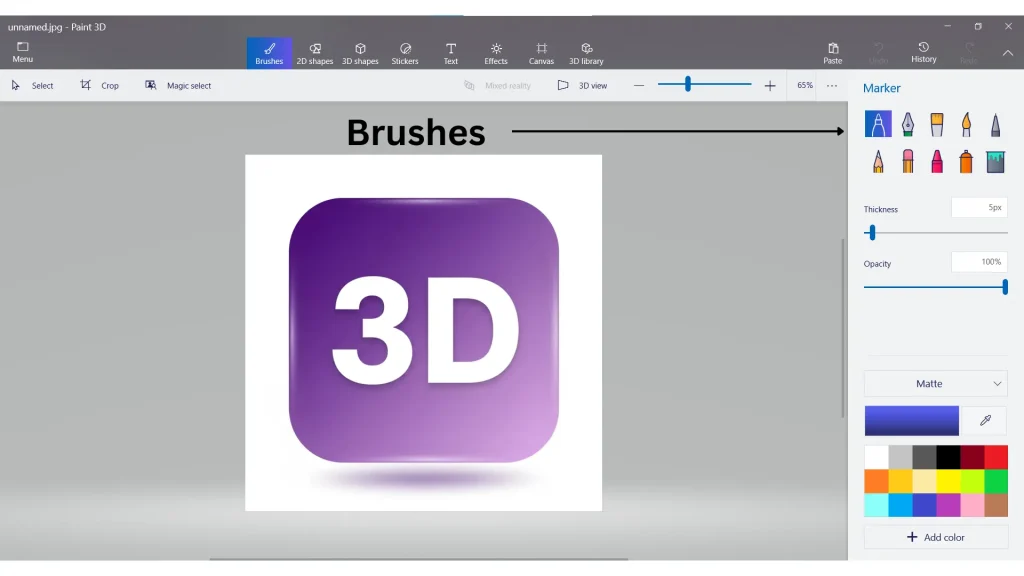
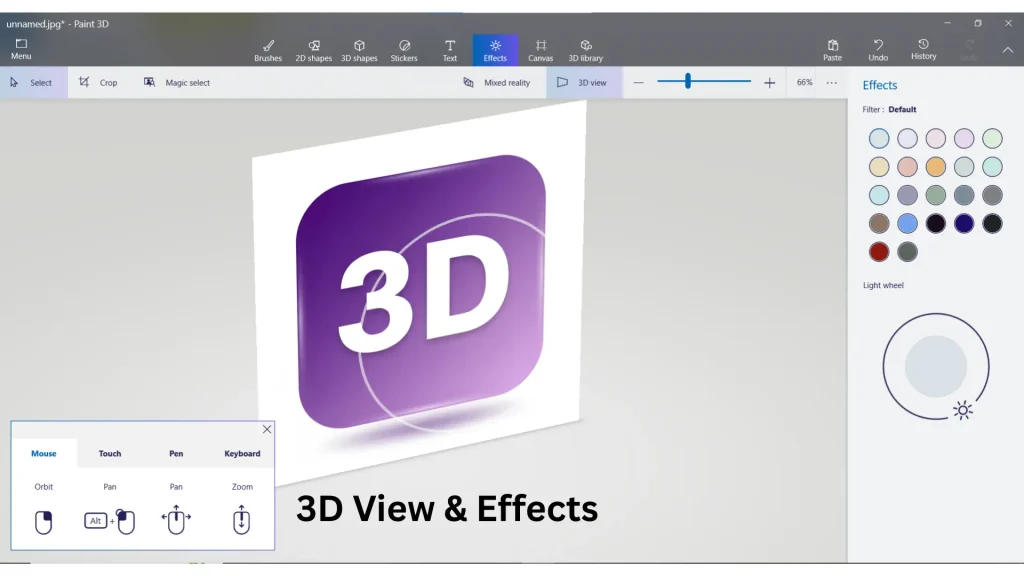
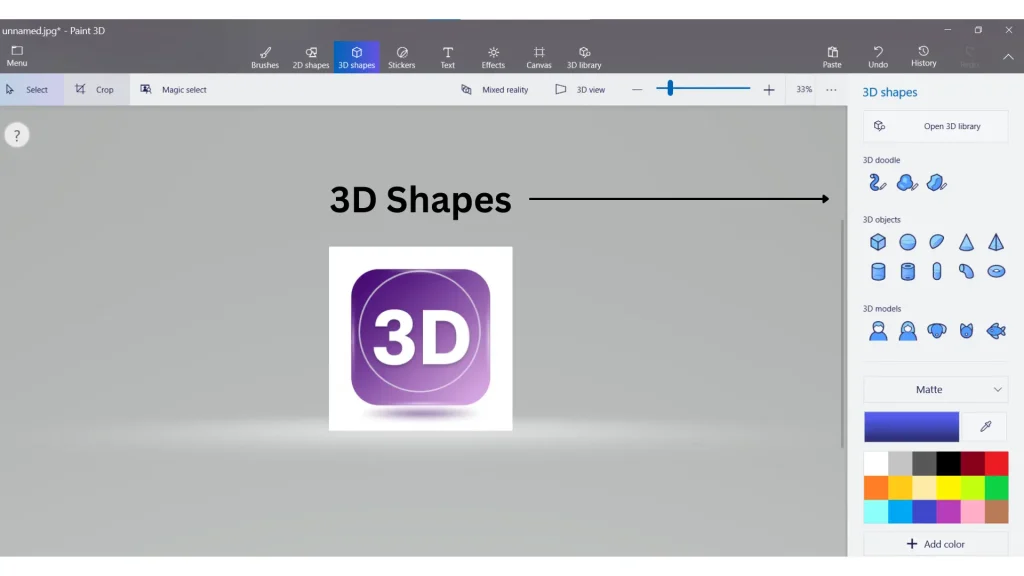
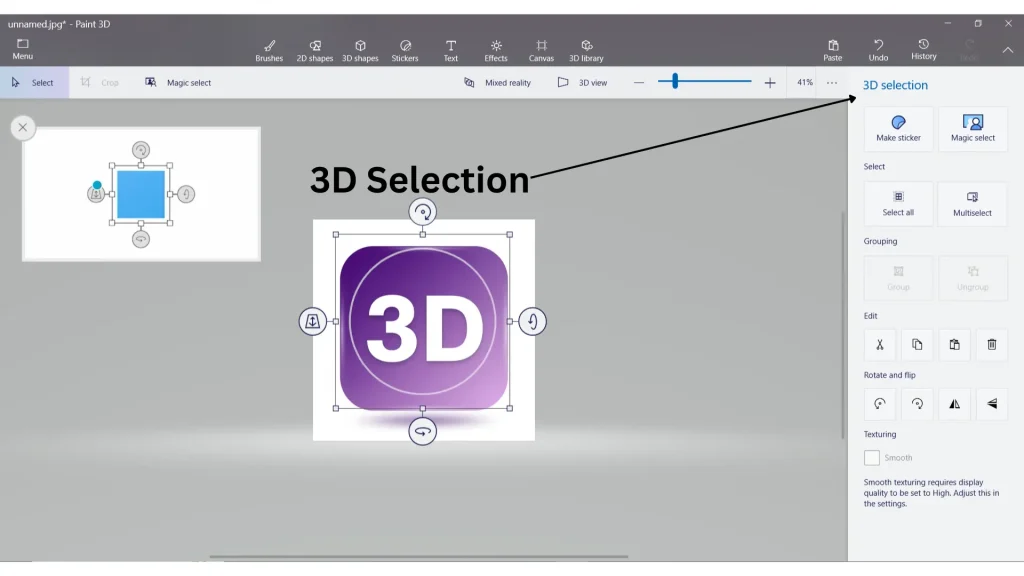
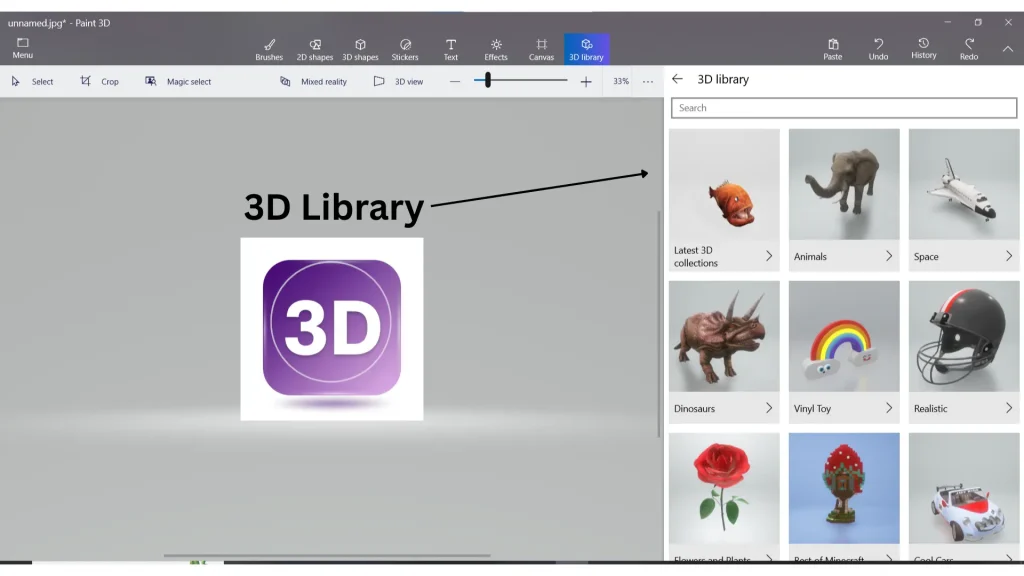
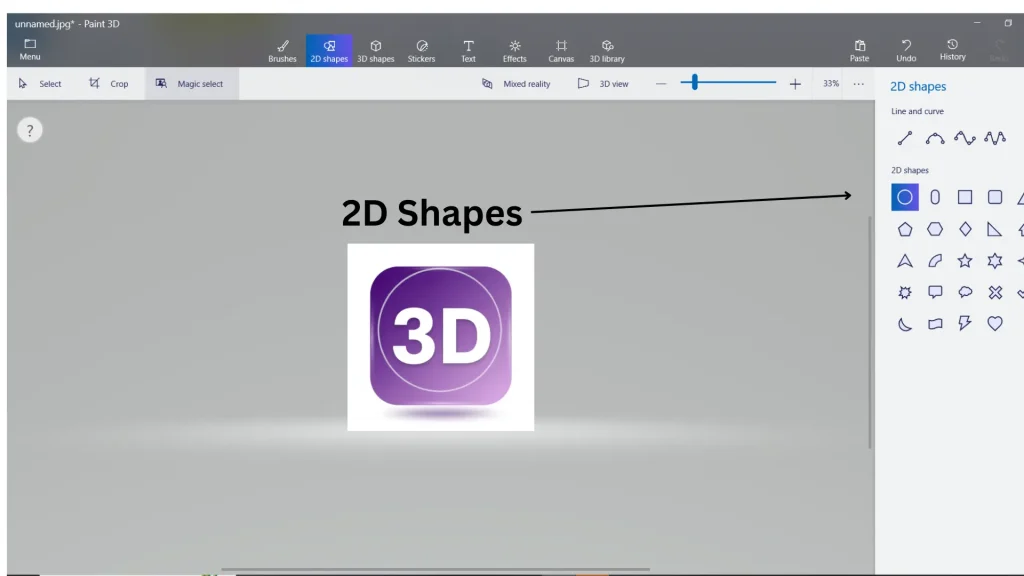
What is Paint 3D?
Paint 3D is a modern drawing, 2D, and 3D-creation app for Windows that Microsoft introduced to make digital art and simple 3D design accessible to everyone, not just designers or professionals.
Microsoft created it as a friendly upgrade to classic Paint so people like students, beginners, content creators, and casual users could easily create visuals without the need for complex tools. I appreciate how it removes the fear of 3D work; you can simply open it and start experimenting.
The tools are straightforward and beginner-friendly, so you don’t need prior design experience to start creating. It offers an easy way to bring ideas to life. You can draw, edit photos, and create basic 2D and 3D objects in minutes, even if you’ve never used design software before. That’s what makes it important: Instead of learning heavy professional programs, it lets anyone express ideas visually in a simple, friendly environment.
The software is lightweight, easy to install, and doesn’t require a powerful PC, which is one of the reasons many beginners love it.
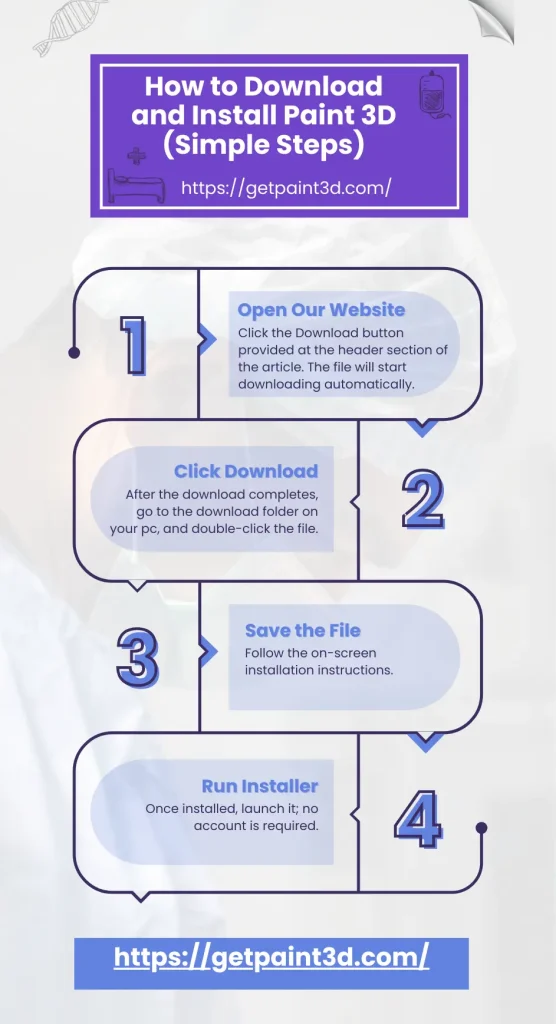
How to Download and Install 3D Paint (Simple Steps)
Paint 3D was originally released by Microsoft. Even though active updates have stopped since Aug 2024, you can still download and use it on Windows 10 and 11. Follow the steps below to download and install it successfully on your pc:

Open Our Website
Click the Download button provided at the header section of the article. The file will start downloading automatically.

Click Download
After the download completes, go to the download folder on your pc, and double-click the file.
Save the File
Follow the on-screen installation instructions.
Run Installer
Once installed, launch it; no account is required.
That’s it. You’re ready to start drawing and creating 3D designs on your PC.
3D Paint System Requirements (Windows 10 & 11)
Requirements |
Minimum Specifications |
Recommended Specifications |
|---|---|---|
|
Operating System |
Windows 10 version 1703+ |
Windows 10 version 2004+Windows 11 |
|
Processor (CPU) |
1GHz dual-core |
Intel Core i3/i5 or AMD Ryzen 3/5 or better |
|
RAM |
4GB |
8GB or more |
|
Storage Space |
500 MB free disk space |
2GB free (preferably SSD) |
|
Graphics Card (GPU) |
DirectX 9 compatible GPUWDDM 1.0 driver |
DirectX 12-capable GPU1GB + VRAM |
|
Internet Connection |
Needed for download & 3D library |
Broadband recommended |
How to Use Paint 3D (Beginner-Friendly Guide)
If you’re new to this software, don’t worry, getting started is much easier than it looks. The app feels simple, and after a few minutes of exploring, you’ll likely find yourself experimenting with brushes and 3D shapes just like I did the first time.
Get Comfortable With the Interface
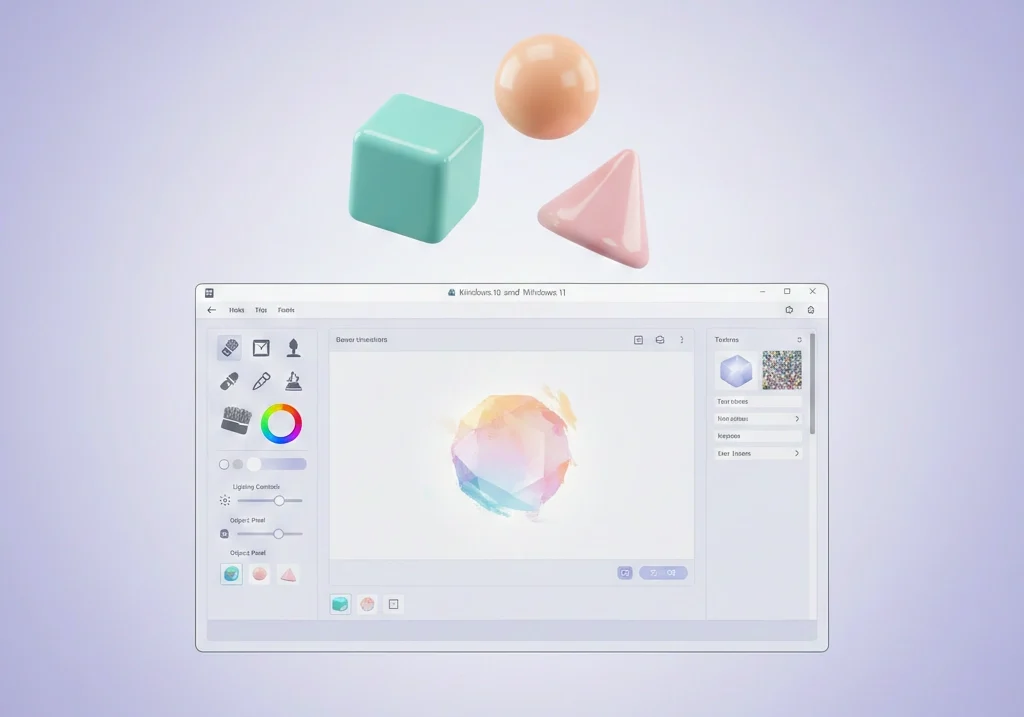
The middle area is your canvas. This is where your artwork comes to life. At the top, you’ll see tools like Brushes, 2D Shapes, 3D Shapes, Stickers, Text, Effects, Canvas, and 3D Library. Whenever you select something, its settings appear on the right side, so you can quickly tweak colors, thickness, or styles. After a few clicks, the layout starts to feel very natural.
Add and Play With 3D Objects(3D Library):
Open 3D Shapes to create your own models or use the 3D Library to insert ready-made objects. You can choose from 3D doodles, premade models, or import your own designs. Rotate, resize, and position them freely. This is usually where users realize how fun and intuitive Paint 3D really is.
Apply Stickers, Textures, and Effects
Stickers automatically wrap around 3D objects, saving a significant amount of effort. Textures help you turn shapes into wood, metal, glass, and more. With the Effects tool, you can instantly change lighting and mood. A quick tweak often makes the whole design pop.
Add 2D or 3D Text
Using the Text tool, you can insert 2D or 3D text. Change fonts, colors, and size, and even add background fill to highlight important words. If you’re making logos or titles, this part feels especially satisfying.
Start Drawing and Painting
Click Brushes to draw using pencils, markers, or calligraphy tools. You can easily change colors and thickness and undo mistakes. You can also drag 2D shapes onto the canvas and then resize, rotate, and position them however you like.
Save or Export Your Artwork
When you are done with your design, go to Menu > Save As.
You can export as:
PNG/JPG for images
GLB/FBX for 3D models
This way, you can continue to improve your project later or share it with others.
Tips and Tricks
Want to get more out of Paint 3D? These quick tips and tricks will help you work faster, customize better, and create smarter.
Paint 3D vs Microsoft Paint (A Quick Comparison in 2026)
Paint 3D and Microsoft Paint are both beginner-friendly, but they serve different creative needs. This comparison highlights how the 3D version of the app excels at 3D and advanced editing, while classic MS Paint focuses on fast, simple 2D tasks.
Feature |
Microsoft Paint |
Paint 3D |
|---|---|---|
|
Type |
2D Drawing only |
2D + 3D Drawing |
|
Best for |
Quick 2D edits, screenshots, memes |
3D designs, transparent PNGs, background removal |
|
Tools |
Basic tools |
Advanced tools (realistic brushes, textures, 3D painting) |
|
Magic Select / AI Cutout |
❌ |
✔️ |
|
3D models |
❌ |
✔️ |
|
Textures & Effects |
❌ |
✔️ |
|
Ease of Use |
Super easy |
Feature-rich but still beginner-friendly |
|
Text tools |
2D texts only |
2D & 3D texts |
|
Startup Speed |
Very fast |
Slightly slower |
|
Layers |
Limited support (Windows 11 only) |
Full layer and transparency support |
|
Output Formats |
JPG, JPEG, GIF, PNG, BMP |
2D + 3D formats (PNG, JPEG, BMP, GLB, FBX, 3MF) |
|
Best for |
Simple drawing and Basic edits |
Creative 3D projects and advanced designs |
Pros and Cons of Paint 3D
Pros
Cons
Looking for more advanced or similar tools? Check out the best Paint 3D Alternatives for Windows to find powerful free and paid options.
3D Drawing Features (Quick Review)
From my experience, 3D drawing in Paint 3D feels simple and enjoyable. The app makes it easy to jump in, even if you’re a beginner. You can start with its built-in 3D models or quickly turn your own 2D sketches into 3D objects using the doodle tools and shapes. Here is a video showing how to draw 3D drawings using different tools in the software.
I especially like how adding textures, stickers, and lighting effects instantly gives designs a more lifelike look. It’s not a professional 3D studio, but for creative ideas, logos, and learning the basics of 3D art, this software is the perfect choice to start with.
Paint 3D Online: Can You Use It in a Browser?
No, this software cannot be used online in a browser. It is an offline desktop application that must be downloaded and installed on Windows 10 or Windows 11 to work. There is no official web version or online editor available.
If you need to draw or model directly in a browser, you’ll need to use a different online drawing or 3D tool, because 3D Paint simply does not support online use.
Why Choose Us
We provide a trusted platform for downloading official Paint 3D safely and easily.
Safe & Secure
Paint 3D is beginner-friendly and easy to learn, but getting it from a safe and reliable source matters just as much as learning how to use it.
Latest Version
Downloading random files can lead to installation errors or corrupted software.
Easy Guides
We provide a clean, malware-free installer along with clear guidance, tips, and beginner tutorials, because we actually test and use the software ourselves.
Free Forever
If this software fits your needs, you can download it here safely and free of cost, and start creating without worries.
FAQs
Got questions? We’ve got answers. Find solutions to common queries below.
Conclusion
Paint 3D offers a simple yet powerful way to create, edit, and explore both 2D and 3D art without needing advanced design skills. From beginners to casual creators, its intuitive tools, 3D modeling features, and easy workflow make turning ideas into digital designs fast and enjoyable. If you’re looking for a lightweight, Windows-friendly creative app that helps you bring concepts to life in multiple dimensions, this software is a great place to start.